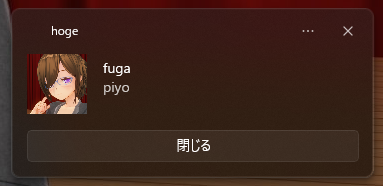
PowerShellはWSL2の中から叩けるため、WSL2の中から通知を出したいときに使える。
PowerShellなのでホスト側のWindowsからも使える。
確認環境
PowerShell 7では動かないので注意。
| Env | Ver |
|---|---|
| OS | Windows 11 Pro 25H2 (OSビルド 26200.8655) |
| PowerShell | 5.1.26100.8655 |
やり方
この内容を
toast.ps1など適当な名前で保存する。文字コードはUTF-8 BOM, 改行コードはLFにしておくparam ( [String]$subject = "WSL Notice", [String]$title = "たいとるですー", [String]$message = "お知らせでーす", [String]$icon = "C:/env/1e1b9fdf82a6a544.png", [switch]$keep ) [Windows.UI.Notifications.ToastNotificationManager, Windows.UI.Notifications, ContentType = WindowsRuntime] > $null $template = [Windows.UI.Notifications.ToastNotificationManager]::GetTemplateContent([Windows.UI.Notifications.ToastTemplateType]::ToastImageAndText04) $xml = New-Object Windows.Data.Xml.Dom.XmlDocument $xml.LoadXml($template.GetXml()) $toastTextElements = $xml.GetElementsByTagName("text") $toastTextElements.Item(0).AppendChild($xml.CreateTextNode($title)) > $null $toastTextElements.Item(1).AppendChild($xml.CreateTextNode($message)) > $null $toastImageElements = $xml.GetElementsByTagName("image") $toastImageElements.Item(0).SetAttribute("src", $icon) > $null if ($keep) { $xml.DocumentElement.SetAttribute("scenario", "reminder") > $null $actions = $xml.CreateElement("actions") $action = $xml.CreateElement("action") $action.SetAttribute("content", "閉じる") > $null $action.SetAttribute("arguments", "dismiss") > $null $action.SetAttribute("activationType", "background") > $null $actions.AppendChild($action) > $null $xml.DocumentElement.AppendChild($actions) > $null } $toast = [Windows.UI.Notifications.ToastNotification]::new($xml) $appId = $subject $notifier = [Windows.UI.Notifications.ToastNotificationManager]::CreateToastNotifier($appId) $notifier.Show($toast)- 次の書式で叩くと通知トーストが出る
powershell.exe -File 'C:/path/to/toast.ps1' -subject hoge -title fuga -message piyo -icon C:/path/to/icon.png -keep
このスクリプトのオプション
| オプション | 役割 |
|---|---|
-subject |
通知の表題。ここを変えると別の通知として扱われる |
-title |
通知のタイトル |
-message |
メッセージ本文。一行のみ |
-icon |
アイコン。Windowsホストの絶対パスで指定 |
-keep |
このフラグを立てると通知が消えなくなる |
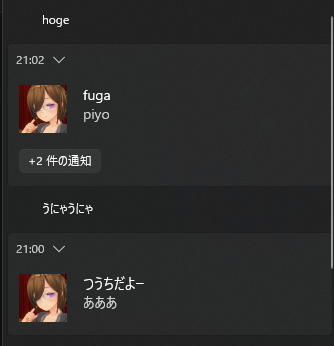
-subjectを変えると別の通知扱いになるため、通知を別々に貯めることができるようになる。
Windows側から叩く方法
powershell 'C:/path/to/toast.ps1' -subject hoge -title fuga -message piyo -icon C:/path/to/icon.png -keep
Windows側から叩く場合、-Fileは省略できる。
参考情報
- ToastTemplateType 列挙型 (Windows.UI.Notifications) - Windows apps | Microsoft Learn
- ここの内容とググった情報からXMLの構造をエスパーして実装している
あとがき
Claude Codeの確認と終了のイベントで通知が出ると便利かなと思って作ってみたが、まだ試せていない。
取りあえずWSL2の中と、Windowsホスト側から叩いたときに通知が出ることは確認している。
PowerShell 7で動かそうと思ったらエラーまみれで動かず、PowerShell 7の場合、NuGetパッケージを取得するか、DLLのパスを直に指定するか、サードパーティの通知ライブラリを使うかということで、諦めた。